

In this chapter
We'll install PHP 8.5 on Windows (through WSL), macOS and Linux, then check the installation with three commands every PHP developer uses — php -v, php -m and php --ini — and learn what PATH is, so a "command not found" error never scares you again.
The Problem in Real Life
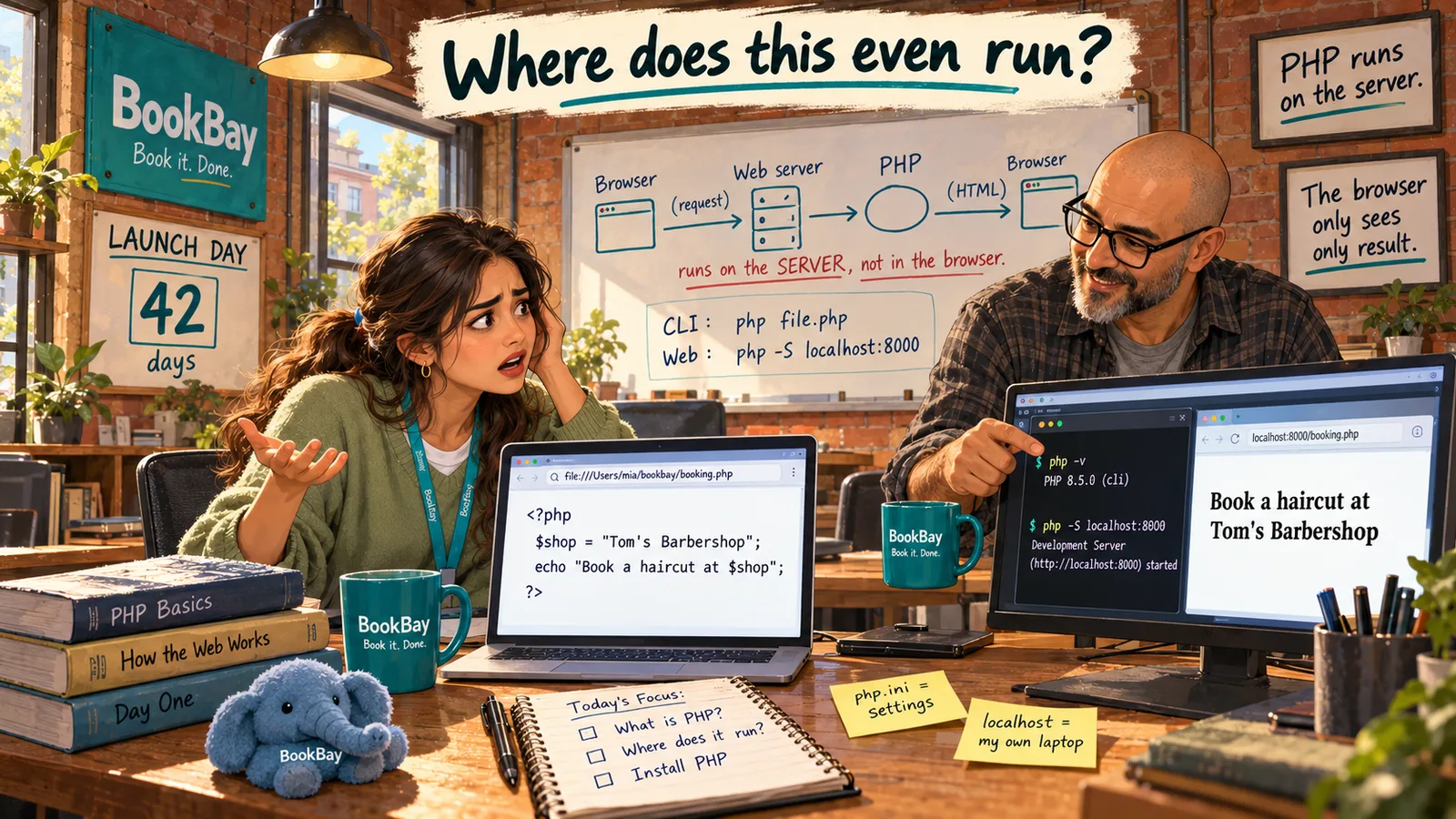
BookBay gave Mia a Windows laptop. Marcus works on a Mac. And BookBay's real server, where Tom's customers will book, runs Linux. Three different computers — and PHP has to work on all of them.
Mia opens a terminal for the first time, types php -v like Marcus showed her, and presses Enter. The answer: 'php' is not recognized as an internal or external command.
"Good," says Marcus. "Now we know where we're starting from: nothing. Let's install it properly — the same way on every machine, as far as we can."
Three computers, three different systems. Do I have to learn to install PHP three times?
Mia
Three Computers, One PHP
"Command not found"
The terminal doesn't know a program called php — it isn't installed, or the terminal can't find it.
Different systems
Windows, macOS and Linux each install software in their own way.
Did it work?
After installing, you need a quick way to check the version, the features and the settings file.
Installing PHP
What "installing PHP" means: you're putting the PHP runtime from chapter 2 on your computer — the interpreter, its built-in functions and its extensions. The part you'll use first is the PHP CLI: the php command you type in a terminal. Once it works, you can run any PHP file with php file.php.
A terminal is a window where you type commands instead of clicking. On macOS it's the app called Terminal; on Linux it's usually called Terminal too; on Windows you'll use Windows Terminal. Every command in this course is typed there.
Pick your computer below. You only need to follow one of the three paths:
- Windows → use WSL: WSL (Windows Subsystem for Linux) is a free feature from Microsoft that runs a real Linux system inside Windows. You install PHP inside it, exactly like on a Linux server. This is what Mia does, and it's what this course recommends: every later command then works the same for everyone.
- macOS → use Homebrew: Homebrew is a free "app store for the terminal" that installs developer tools with one command. macOS doesn't come with PHP any more, and Homebrew installs the newest version.
- Linux (Ubuntu) → use apt: apt is Ubuntu's own tool for installing software. Ubuntu's built-in list has an older PHP, so you first add a well-known extra source that has PHP 8.5. Servers usually run Linux, so this path matches production best.
| Your computer | Tool | Why this way |
|---|---|---|
| Windows | WSL (Ubuntu inside Windows), then apt | Same commands as a real Linux server |
| macOS | Homebrew | macOS has no PHP; Homebrew installs the newest one |
| Linux (Ubuntu) | apt + the ondrej/php source | Ubuntu's own list has an older PHP |
| Any computer, just to try | BizTechLab PHP Playground | Nothing to install — runs in the browser |
Choose your path
Which computer do you have?
Windows
install WSL → Ubuntu → apt
macOS
install Homebrew → brew install php
Linux (Ubuntu)
add PHP source → apt install
php -v
shows PHP 8.5 — you're ready
Open Windows Terminal as administrator (right-click → Run as administrator) and run this one command. It installs WSL with Ubuntu. Restart your computer when it asks, then open Ubuntu from the Start menu and choose a username and password. From then on, follow the Ubuntu steps in the next box, inside the Ubuntu window.
wsl --install
Run these one at a time. sudo means "run as administrator", so it asks for your password (nothing appears while you type it — that's normal). The ppa:ondrej/php source is the community-trusted place for up-to-date PHP on Ubuntu.
sudo apt updatesudo apt install -y software-properties-commonsudo add-apt-repository ppa:ondrej/phpsudo apt updatesudo apt install -y php8.5-cli php8.5-mbstring php8.5-xml php8.5-curl
php8.5-cli is PHP itself; the other three are common extensions you'll need soon.
If you don't have Homebrew yet, install it first with the command from brew.sh. Then one command installs the newest PHP.
brew install php
Windows without WSL: you can also install PHP directly on Windows. Download the zip marked "VS17 x64 Non Thread Safe" from windows.php.net, unzip it to C:\php, copy php.ini-development to php.ini in that folder, and add C:\php to your PATH (explained below). It works for small scripts (a script is a PHP file that PHP runs from top to bottom, like hello.php), but later Acts use Linux tools, so WSL is the better choice for this course.
What PATH is: when you type php, the terminal doesn't search your whole computer. It looks only in a short list of folders, saved in a setting called PATH. If the folder that holds the php program isn't in that list, you get php: command not found (Linux/macOS) or 'php' is not recognized… (Windows) — even if PHP is installed. The installers above add PHP to PATH for you. To see which php the terminal found, type which php (Linux, macOS, WSL) or where php (Windows). If you just installed PHP and it's still "not found", close the terminal and open a new one — PATH is read when a terminal starts.
Three commands to check your installation: the table below sums them up, and under each command you'll see the answer you should get.
| Command | Shows | Use it when |
|---|---|---|
| php -v | The PHP version | Code works for someone else but not for you |
| php -m | The extensions that are switched on | "Call to undefined function …" |
| php --ini | Which php.ini settings file was loaded | A setting you changed doesn't seem to work |
php -v prints the version. Check that it says 8.5. The word (cli) tells you this is the command-line PHP, and the last line mentions Zend OPcache, a speed feature you'll meet in chapter 6.
$ php -vPHP 8.5.2 (cli) (built: …) (NTS)Copyright (c) The PHP GroupZend Engine v4.5.2, Copyright (c) Zend Technologieswith Zend OPcache v8.5.2, Copyright (c), by Zend Technologies
Your patch number (the last digit) may be higher — that's fine.
php -m lists the modules — the extensions that are switched on, like curl, mbstring or pdo_mysql. When code fails with "Call to undefined function", this list is the first place to look. Chapter 6 explains how to add more.
$ php -m[PHP Modules]Corectypecurldatejsonmbstringpcre…[Zend Modules]Zend OPcache
php --ini shows which configuration file PHP loaded — its settings file, called php.ini. If it says Loaded Configuration File: (none), PHP is running with default settings. Chapter 5 is all about this file.
$ php --iniConfiguration File (php.ini) Path: /etc/php/8.5/cliLoaded Configuration File: /etc/php/8.5/cli/php.iniScan for additional .ini files in: /etc/php/8.5/cli/conf.dAdditional .ini files parsed: /etc/php/8.5/cli/conf.d/20-curl.ini, …
On macOS with Homebrew the folder is different (for example /opt/homebrew/etc/php/8.5/) — the idea is the same.
Your first PHP run: create a file called hello.php, write one line in it, and run php hello.php in the same folder. If the terminal prints your text, PHP is installed and working. You can also run one line without a file: php -r 'echo PHP_VERSION;' (the -r means "run this code").
Save this as hello.php, then run it from a terminal in the same folder.
<?phpecho "PHP " . PHP_VERSION . " is ready at BookBay!\n";
$ php hello.php → PHP 8.5.2 is ready at BookBay!
Key Takeaway
Installing PHP means getting the php command working in your terminal. Windows users install it inside WSL, macOS users with Homebrew, Linux users with apt. Then three commands confirm everything: php -v for the version, php -m for the extensions, php --ini for the settings file.
Why This Matters
Every developer at BookBay — and every server — has to run the same PHP version with the same extensions. When they don't, you get the classic "it works on my machine" problem. Knowing how PHP was installed, and checking it with php -v, php -m and php --ini, is how you find those differences in seconds instead of hours.
Using WSL on Windows also means Mia practises on the same kind of system the real server runs. When she connects to BookBay's Linux server later, the commands will already feel familiar.
Mia types php -v again. This time: PHP 8.5.2 (cli). She grins. Then she runs php --ini and frowns at a long path ending in php.ini. "What's in that file?" Marcus smiles. "Every setting PHP has. Let's open it." That's the next chapter.