

In this chapter
We'll take the mystery out of the black window: what a terminal is, what a shell is, how to read the prompt and a command like a sentence, which shell is which, how to run programs and reach a server with ssh — explained with one simple restaurant analogy all the way through.
The Problem in Real Life
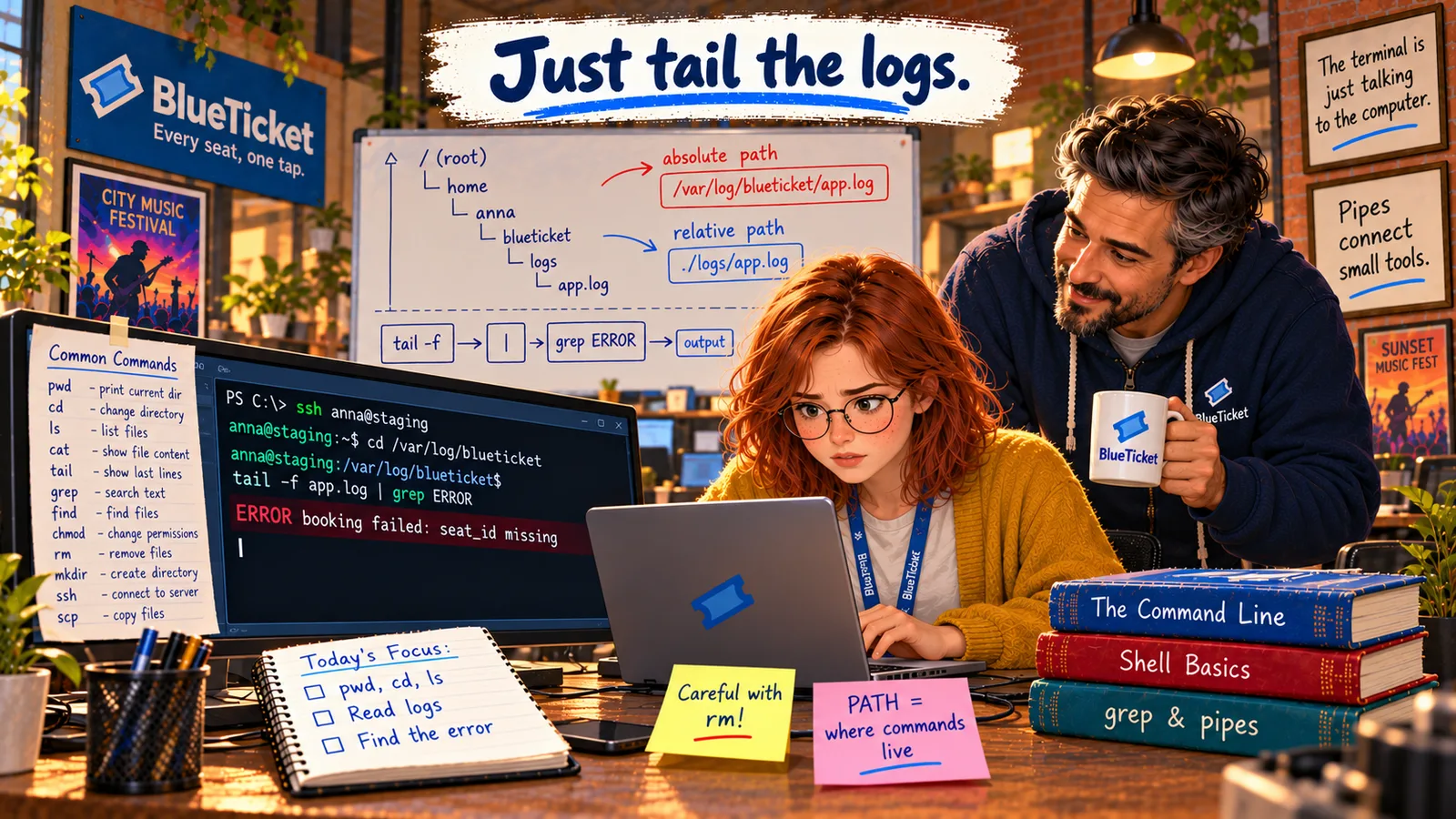
Anna opens the terminal in VS Code. In Act 04 she ran a few commands copied from the README, but she never really understood what she was typing. Now there's no README — just a black window, a line of text ending in $, and a blinking cursor.
"I don't even know what I'm talking to," she says. "Is this Windows? Linux? Some kind of chat? What happens when I press Enter?"
John pulls up a chair. "Forget computers for a minute. Have you ever ordered food at a restaurant?"
It feels like talking to the computer without knowing its language.
Anna
"The Black Window" vs. Who You're Really Talking To
It looks like one thing
The black window looks like a single program. It's actually two working together: the terminal and the shell.
Commands look like code
"ls -l /var/log" looks like secret code. It's really a short sentence with a verb, a "how" and a "what".
Where is the command running?
After ssh, the same window controls a computer in another building. The prompt is how you know where you are.
The Terminal and the Shell, Step by Step
John's analogy: ordering food in a restaurant. Keep this picture in mind for the whole chapter — every part of the terminal has a place in it.
The table and the order pad = the terminal: the terminal is just the place where you write your order and where the food is put in front of you. It shows text and passes your typing along. It doesn't understand a single word you write. Windows Terminal, the Mac "Terminal" app and the terminal panel inside VS Code are all terminals.
The waiter = the shell: the shell is the program that actually reads your order, understands it, and takes it to the kitchen. Without the waiter, your order pad is just paper. Bash, zsh and PowerShell are shells — different waiters.
The kitchen = the operating system: the kitchen does the real work. The waiter doesn't cook; the waiter asks the kitchen (the OS and its kernel, from Act 05) to run the right program, then brings the result back to your table.
The menu language = the commands: each waiter understands a certain set of words. Order in a language your waiter doesn't speak, and you get "command not found" — the waiter's way of saying "we don't have that."
- Step 1: you type
lsand press Enter. The terminal sends the letters l and s to the shell. - Step 2: the shell reads it and works out what you mean: "run the program called ls." It looks the program up (using PATH — chapter 5).
- Step 3: the shell asks the operating system to start
lsas a process (Act 04 and Act 05). - Step 4:
lsruns, looks at the current folder, and writes its answer — a list of file names — as text. - Step 5: the shell hands that text back to the terminal, the terminal shows it on screen, and the shell prints a fresh prompt: "Ready for your next order."
| In the restaurant | In the computer | Example |
|---|---|---|
| Table and order pad | Terminal | Windows Terminal, VS Code terminal |
| The waiter | Shell | Bash, zsh, PowerShell, cmd |
| The kitchen | Operating system | Linux, Windows, macOS |
| Your order | A command | ls -l /var/log |
| The dish on your table | Output | The list of files |
| "We don't have that" | command not found | Typing a program that isn't installed |
| A waiter in another city, by phone | ssh to a server | ssh anna@staging |
| Part | In the command | In English | Grammar |
|---|---|---|---|
| Command | ls | List | The verb |
| Option (flag) | -l | in detail | How to do it |
| Argument | /var/log | the folder /var/log | What to do it to |
Read together: "List, in detail, the folder /var/log."
| You type | Read it as |
|---|---|
| ls -a | List everything, including hidden files |
| node --version | Node, tell me your version |
| git status | Git, show me the status of this project |
| tail -n 20 app.log | Show the last 20 lines of app.log |
| ssh anna@staging | Connect me, as anna, to the computer staging |
| Part | Means | Like the top of a letter |
|---|---|---|
| anna | The user you are logged in as | Who is writing |
| @staging | The computer you are on | Which building you're in |
| :/var/log | Your current folder | Which room you're in |
| $ | Ready — you are a normal user | "Go ahead" |
| # (instead of $) | Ready — you are root, the admin | "Careful — you can break anything" |
| Feature | Command Prompt (cmd) | PowerShell | Bash |
|---|---|---|---|
| Where you'll find it | Windows (old) | Windows (modern), also Mac/Linux | Linux servers; Mac (as zsh); Git Bash, WSL |
| List files | dir | Get-ChildItem (ls also works) | ls |
| Show current folder | cd | Get-Location (pwd also works) | pwd |
| Show a file | type file.txt | Get-Content (cat also works) | cat file.txt |
| Use it for | Very old scripts | Managing Windows machines | Servers, development, most tutorials |
| Task | With a mouse | In the terminal |
|---|---|---|
| See files in a folder | Open File Explorer, click through folders | ls /var/log |
| Find every error in a big log | Open in an editor, scroll, search, copy | grep ERROR app.log |
| Do the same on 20 servers | Log in to each one and click 20 times | One script, run once |
| Work on a server with no screen | Not possible | ssh, then type |
What happens every time you press Enter
You type: ls -l
and press Enter
Terminal
the order pad — shows text, passes it on
Shell (Bash)
the waiter — understands the command
Operating system
the kitchen — runs the ls program
Output on screen
the list of files, then a new prompt
Read the comment after each # — that's what the line means. The lines without a command in front are the computer's answers.
anna@laptop:~$ whoami # who am I? (the waiter answers)annaanna@laptop:~$ node --version # "node, what's your version?"v20.11.0anna@laptop:~$ ssh anna@staging # phone the waiter on the staging serveranna@staging:~$ hostname # the prompt changed! which computer am I on now?staginganna@staging:~$ pwd # which folder am I standing in?/home/annaanna@staging:~$ exit # hang up — go back to my own laptopanna@laptop:~$
Watch the start of each line: it says laptop, then staging, then laptop again. The prompt always tells you where your commands will run.
That's the whole loop, every single time: you type → the shell understands → the OS runs it → you see the result → a new prompt appears. People call this a REPL — Read, Evaluate, Print, Loop. Once you see the loop, the terminal stops being scary: it's just a very fast, very literal waiter.
Reading the prompt — "where am I and who am I?": before you type anything, the shell prints a prompt. On a Linux server it often looks like anna@staging:/var/log$. Read it like the top of a letter: anna is who you are (your user), staging is which computer you're on, /var/log is which folder you're standing in, and $ means "I'm ready, and you're a normal user." If you ever see # at the end instead, you're the all-powerful root user (Act 05) — be very careful, because the waiter will now do anything you ask, even destroy the kitchen.
Reading a command — it's a sentence: most commands have the same shape as a short English sentence: a verb, then how, then what. In the terminal those parts are called the command, the options, and the arguments.
Take ls -l /var/log. The command ls is the verb: "list." The option -l is the "how": "in long, detailed form." The argument /var/log is the "what": "the folder /var/log." Put together: "List, in detail, the folder /var/log." That's all it is. Options (also called flags) usually start with one dash and a single letter, like -l, or two dashes and a whole word, like --version. Spaces separate the parts, which is why spaces matter in the terminal.
Different waiters, different languages — the three shells: there isn't just one shell, just as a restaurant can have different waiters. Command Prompt (cmd) is the old Windows waiter: polite, but knows only a few old words, like dir and cd. PowerShell is the modern Windows waiter: very capable, and it has learned many Linux words too, so ls, cd and pwd work there. Bash is the waiter who works on almost every Linux server in the world — and Mac's zsh is Bash's close cousin. Because BlueTicket's servers run Linux (Act 05), the shell Anna must learn is Bash. On a Windows laptop you can still use Bash through Git Bash or WSL (a real Linux running inside Windows).
Running programs from the terminal: ordering a dish is just saying its name. Typing node --version runs the program node with the option --version, and it answers v20.11.0. Typing npm run dev starts BlueTicket's app (Act 04). If a program keeps running — like a server — the waiter stays busy with that order and no new prompt appears. Press Ctrl+C to say "stop this order," and the prompt comes back.
Connecting to a server — ordering in a restaurant in another city: the staging server is a computer in a data centre. It has no screen and no keyboard. So how do you type on it? With ssh (Secure Shell). ssh anna@staging means "connect me, as the user anna, to the computer called staging." It's like a phone line straight to a waiter in another restaurant: your keyboard and screen stay on your desk, but every order is now taken and cooked there. The line is encrypted, so nobody in between can read it.
The only way to tell which restaurant you're ordering in is the prompt. Before ssh, Anna's prompt says her laptop's name. After ssh, it says anna@staging. When she types exit, the line hangs up and her own prompt comes back. Golden rule: always read the prompt before you press Enter — a command meant for your laptop can do real damage on a server.
Why developers love it — the picture menu vs. speaking directly: a graphical interface (GUI) is like a menu with pictures: easy for beginners, because you just point. The terminal is like speaking to the waiter directly: you have to know the words, but once you do, it's much faster. And it has four powers a picture menu doesn't. It works without a screen, so it's the only way into most servers. It can be saved and replayed: a list of commands in a file (a script) is like a written recipe the kitchen can follow again and again, exactly the same — this is how all automation works. Every option is available, not just the buttons someone designed. And most developer tools are built for it first — Git, npm, Docker and cloud tools all start in the terminal.
Key Takeaway
The terminal is the order pad: it shows text and passes your typing on. The shell (Bash, zsh, PowerShell, cmd) is the waiter: it understands your command and asks the operating system — the kitchen — to run it, then brings back the result. Read the prompt to know who and where you are, read a command as a sentence (command = verb, options = how, arguments = what), and use ssh to order from a computer somewhere else.
Why This Matters
Every server BlueTicket runs is managed through a shell — there's no other way in. Deployments, debugging, Git, Docker and cloud tools all start in the terminal. It feels slow for the first week and becomes the fastest tool you have after that. With the restaurant picture in your head — order pad, waiter, kitchen — every new command is just a new dish on the menu. The Linux Fundamentals course goes much deeper; this Act gives you everything you need to start.
Anna is logged in to staging, with a prompt waiting: anna@staging:~$. She reads it out loud — "I'm anna, on staging, in my home folder, ready" — and for the first time, the black window makes sense. The log file is in /var/log/blueticket. Time to move around.