

In this chapter
We'll learn the everyday commands for moving around and managing files: pwd, cd, ls, mkdir, touch, cp, mv and rm — including the one command you must always use carefully.
The Problem in Real Life
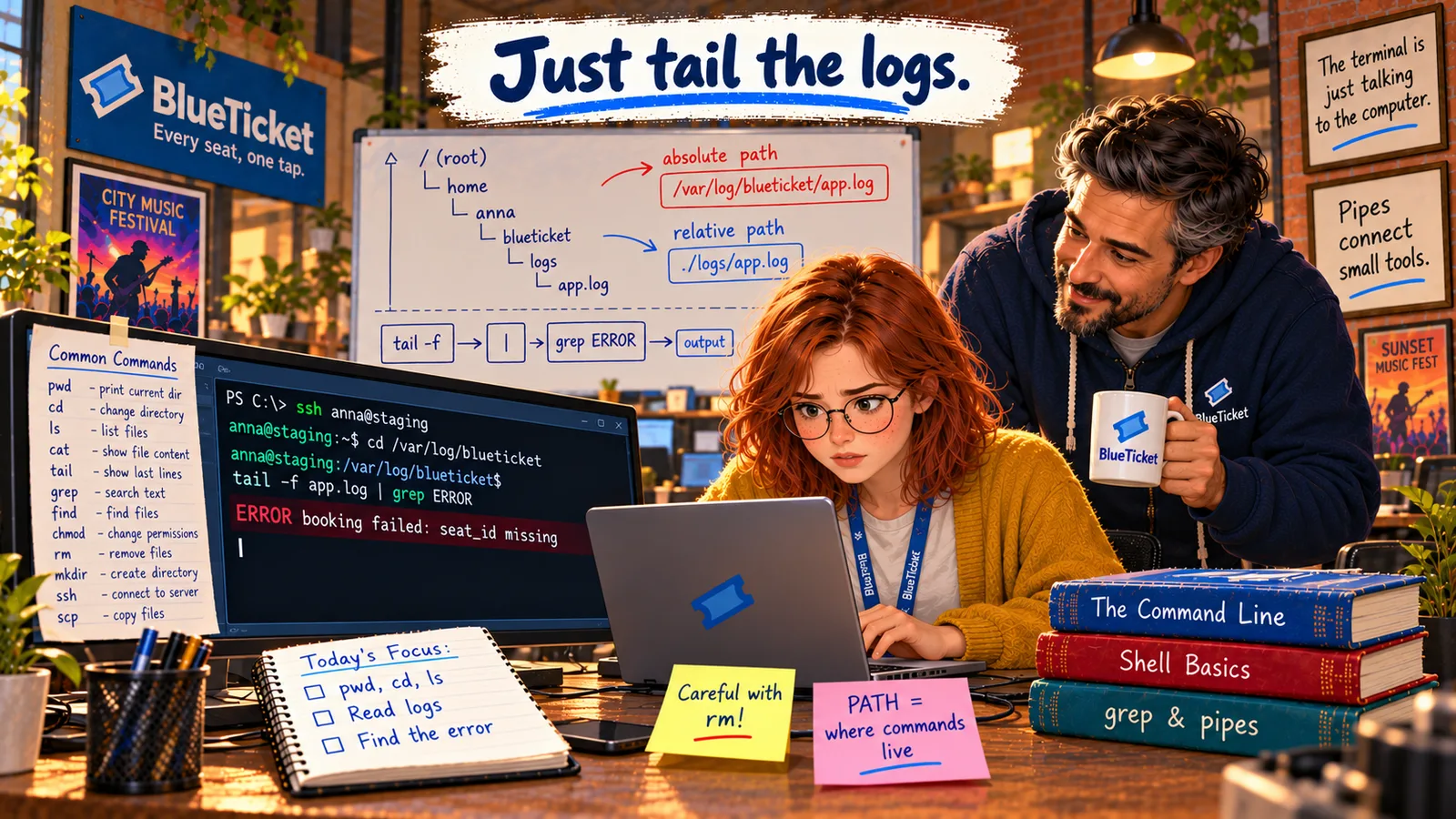
The prompt says anna@staging:~$. Anna wants to get to /var/log/blueticket, look around, and keep a copy of the log on the side so she doesn't touch the real one.
"Eight commands," John says. "That's all you need to move around and manage files on any Linux machine. And one of them can't be undone — so we'll learn that one slowly."
On a server, there's no recycle bin. A deleted file is gone.
John
Clicking in a File Explorer vs. Typing Commands
Where am I? What's here?
Without a window, you need commands to see your current folder and what's in it.
Create, copy, move
Everything you do with a mouse in a file explorer has a short command.
Deleting is forever
rm doesn't move files to a recycle bin — they're removed immediately.
Moving Around and Managing Files
Here are the eight commands, in the order you'll usually need them. Each one is short for an English word, which makes them easier to remember.
pwd— print working directory. Shows where you are right now. When you're lost, typepwd.cd— change directory. Moves you to another folder.cd /var/log/blueticket(absolute path),cd logs(relative path),cd ..(up one level),cd ~or justcd(back home),cd -(back to the previous folder).ls— list. Shows the files and folders in the current directory. Useful options:ls -l(details: permissions, owner, size, date),ls -a(include hidden files),ls -lh(sizes in readable units like K, M, G). Options can be combined:ls -lah.mkdir— make directory. Creates a new folder:mkdir notes. Add-pto create several levels at once:mkdir -p notes/week6.touch— creates a new, empty file (or updates the time on an existing one):touch todo.txt.cp— copy.cp app.log ~/app-copy.logcopies a file. To copy a whole folder with everything inside, add-r(recursive):cp -r logs ~/logs-backup.mv— move. Moves a file to another place:mv report.txt notes/. It's also how you rename:mv old.txt new.txt.rm— remove. Deletes a file:rm old.txt. To delete a folder and everything in it:rm -r folder. There is no recycle bin and no undo.
| Command | Short for | Example | What it does |
|---|---|---|---|
| pwd | print working directory | pwd | Shows your current folder |
| cd | change directory | cd /var/log | Moves to another folder |
| ls | list | ls -lah | Lists files, with details and hidden files |
| mkdir | make directory | mkdir -p notes/week6 | Creates folders |
| touch | — | touch todo.txt | Creates an empty file |
| cp | copy | cp -r logs backup | Copies files or folders |
| mv | move | mv old.txt new.txt | Moves or renames |
| rm | remove | rm -i old.txt | Deletes — no undo |
| Command | Goes to |
|---|---|
| cd .. | The parent folder (one level up) |
| cd ../.. | Two levels up |
| cd ~ or cd | Your home folder |
| cd - | The folder you were in before |
| cd / | The root of the file system |
pwd# /home/annacd /var/log/blueticketpwd# /var/log/blueticketls -lh# -rw-r--r-- 1 blueticket blueticket 148M Nov 14 10:42 app.log# -rw-r--r-- 1 blueticket blueticket 201M Nov 13 23:59 app.log.1# -rw-r--r-- 1 blueticket blueticket 2.3M Nov 14 10:40 error.logcp app.log ~/app-today.log # a safe copy to work withmkdir -p ~/notes/week6 # a folder for her notes
Being careful with rm: John gives Anna three rules. First, run pwd and ls before deleting, so you know exactly where you are and what's there. Second, use rm -i while learning — it asks "remove this?" for each file. Third, be extremely careful with rm -rf (remove, recursive, force, no questions) — especially with sudo and especially with paths like / or *. People have deleted whole servers with one typo.
Two habits that save time: press Tab to auto-complete file and folder names (type cd /var/lo then Tab, and the shell fills in log/), and press the up arrow to bring back previous commands instead of typing them again.
On Windows: PowerShell understands most of these same names (pwd, cd, ls, mkdir, cp, mv, rm) as shortcuts for its own commands, so what you learn here mostly works there too. Command Prompt uses different words (dir, copy, move, del).
Anna types her way there: cd /var/log/blueticket, then pwd to check, then ls -lh. Three files: app.log (148M), app.log.1 (yesterday's) and error.log. To be safe, she copies today's log to her home folder before doing anything else: cp app.log ~/app-today.log.
Key Takeaway
Eight commands cover most file work: pwd (where am I), cd (go somewhere), ls (what's here), mkdir and touch (create), cp (copy), mv (move or rename) and rm (delete). rm has no undo — always check where you are first, and treat rm -rf with great care.
Why This Matters
These eight commands are the alphabet of every server you'll ever touch. Deploying an app, cleaning up a full disk (Act 05's checkpoint), finding a config file, backing up data — all of it starts here. And the rm rules aren't just advice: being careful with destructive commands is one of the first things senior engineers judge in a junior.
Anna is in the right folder, with a safe copy of the log. But app.log is 148 MB — about 200,000 lines. She can't scroll through that looking for one error. She needs commands that read files smartly.