

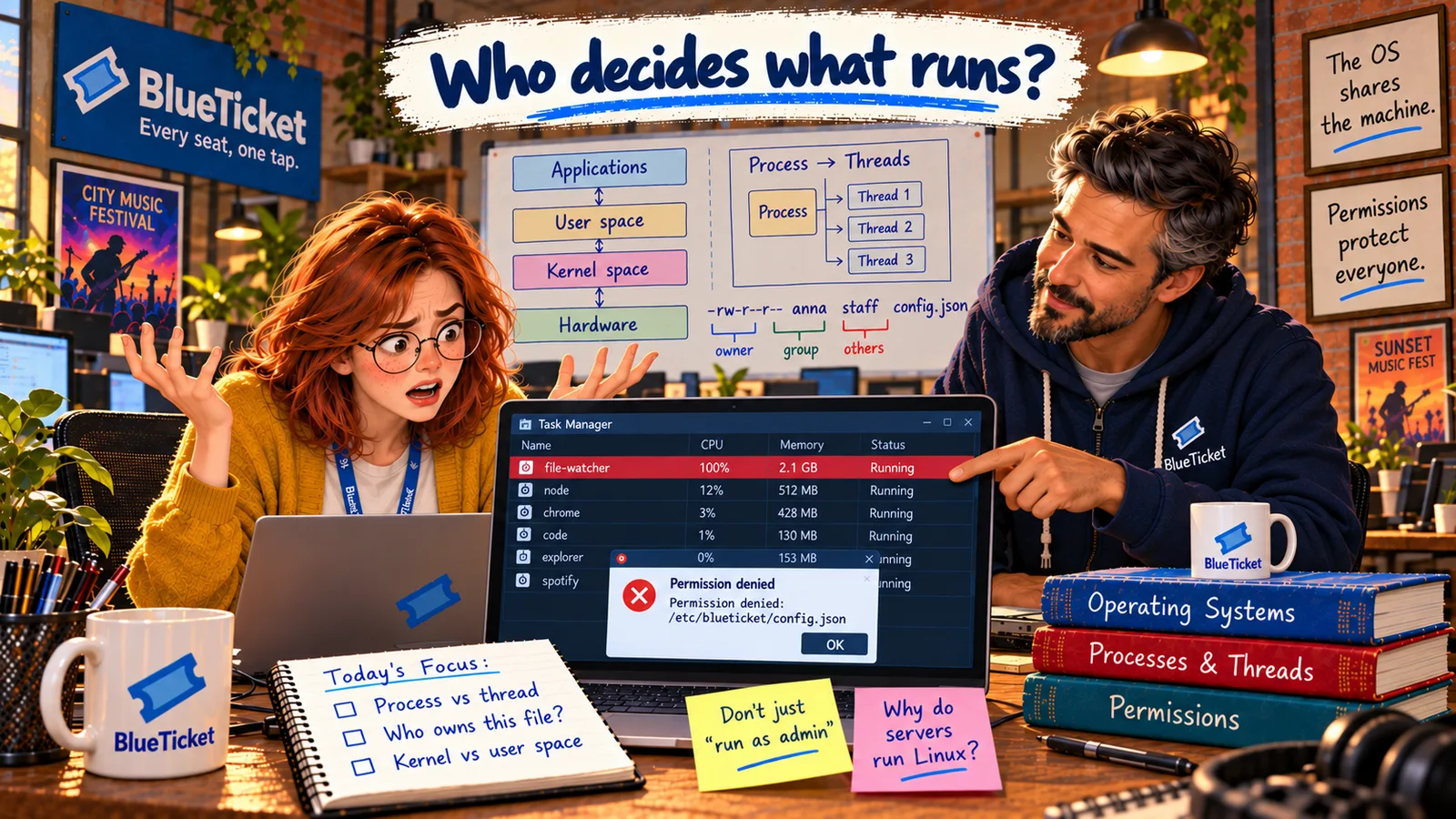
In this chapter
We'll learn what processes and threads are, how a program differs from a process, the life of a process, and how CPU scheduling lets hundreds of processes share a few cores — then find the process that froze Anna's laptop.
The Problem in Real Life
The laptop freezes again. This time John is standing behind Anna. "Open Task Manager. Ctrl+Shift+Esc."
A long list appears. At the top, sorted by CPU: file-watcher.exe — CPU 100% — Memory 2.1 GB. Anna has never heard of it. Below it are more than 200 other entries — Chrome appears 30 times.
| Name | PID | CPU | Memory |
|---|---|---|---|
| file-watcher.exe | 18244 | 100% | 2.1 GB |
| chrome.exe | 9120 | 6% | 410 MB |
| Code.exe | 7764 | 3% | 620 MB |
| node.exe | 20112 | 1% | 180 MB |
| ... 200+ more |
I only opened six apps. Why are there two hundred things running?
Anna
"Apps I Opened" vs. Processes the OS Runs
One bad process
A single process using 100% of the CPU can make the whole computer feel frozen.
Apps are many processes
One app can run as many processes, and each process can run many threads.
Sharing a few cores
Hundreds of processes share 8 cores by taking very short turns.
Processes, Threads and CPU Scheduling
In Act 04 we met the process: a program while it is running. Now let's look closer.
- Program vs. process — a program is a file on disk: a set of instructions that does nothing by itself, like a recipe in a book. A process is that program running, with its own memory and resources — like a cook actually making the dish. You can run the same program several times and get several processes, like two cooks using the same recipe.
- Each process gets its own private memory, a list of open files, and a unique number called a PID (Process ID). That's the number in the second column of Anna's Task Manager. One process can't see or change another's memory.
- Thread — the part of a process that actually runs instructions on a CPU core. Every process has at least one thread. Many have several, so they can do things at the same time — a video call app might use one thread for video, one for sound and one for the screen.
- Process vs. thread — threads inside the same process share that process's memory, so they can work together easily and cheaply. Processes don't share memory, so they're safer from each other but heavier to create. That's why Chrome runs each tab as a separate process: if one tab crashes, the others survive. That's also why Anna saw Chrome 30 times.
| Feature | Program | Process | Thread |
|---|---|---|---|
| What it is | A file on disk | A running program | A path of execution inside a process |
| Has its own memory? | No (it's not running) | Yes, private | No — shares its process's memory |
| Identified by | A file name | A PID | A thread ID |
| Example | chrome.exe on disk | One Chrome tab | The thread drawing that tab |
The life of a process
New
the process is being created
Ready
waiting for a turn on the CPU
Running
on a CPU core for a time slice
Waiting
paused for disk, network or input — then back to Ready
Terminated
finished, crashed or killed — exit code returned
Task Manager does this with clicks on Windows. On a server, you do it with commands.
top # live list of processes, busiest first (press q to quit)ps aux | grep watcher # find the process and its PIDkill 18244 # politely ask process 18244 to stopkill -9 18244 # force it to stop if it won't
Always try a normal kill first, so the program can clean up. -9 stops it instantly with no chance to save anything.
The life of a process: A process moves through a few simple states: it is created (new), it becomes ready (waiting for its turn on the CPU), it is running (on a CPU core right now), it may be waiting (paused until something happens, like a file finishing loading or a key being pressed), and finally it is terminated (it ended, with an exit code — Act 04). Most processes spend most of their time waiting.
CPU scheduling: Anna's laptop has 8 cores and over 200 processes. The OS's scheduler shares the cores by giving each ready thread a tiny turn, called a time slice — a few milliseconds — then switching to another. Switching from one thread to another is called a context switch. This happens thousands of times per second, so everything looks like it runs at the same time. The scheduler also uses priorities: what you're clicking on right now gets turns before a background backup.
So why did the laptop freeze? file-watcher.exe is a development tool that watches project files and restarts the app when they change. It had started watching the giant node_modules folder (Act 04) — tens of thousands of files — and got stuck in a loop checking them again and again. It always had work, so it always wanted the CPU, and it used up all of it. Everything else had to wait longer and longer for a turn.
John shows the fix: in Task Manager, select it and click End task (on Linux or Mac: kill followed by the PID). The fan calms down. Then the real fix: change the watcher's settings so it ignores node_modules. Ending a process stops the symptom; fixing the cause stops it from coming back.
Key Takeaway
A program is a file; a process is a running program with its own memory and a PID; threads are the parts of a process that run on the CPU and share its memory. The scheduler gives every thread short time slices, so hundreds of processes share a few cores — until one greedy process takes them all.
Why This Matters
On BlueTicket's servers there is no Task Manager window — but there are processes, threads and a scheduler, and one runaway process can slow every customer's request. "Which process is using the CPU?" is one of the first questions in almost every performance problem, and in Act 14 Anna will use the same idea to plan how many processes BlueTicket needs for Sale Day.
The freeze is solved. But Task Manager also said that one process was using 2.1 GB of memory, and Anna's laptop only has 16 GB for over 200 processes. How does the OS make that fit — and where do all the files live?