

In this chapter
We'll follow everything that happens between pressing the power button and seeing the login screen — firmware, BIOS and UEFI, the bootloader and the operating system — and use it to fix Anna's laptop.
The Problem in Real Life
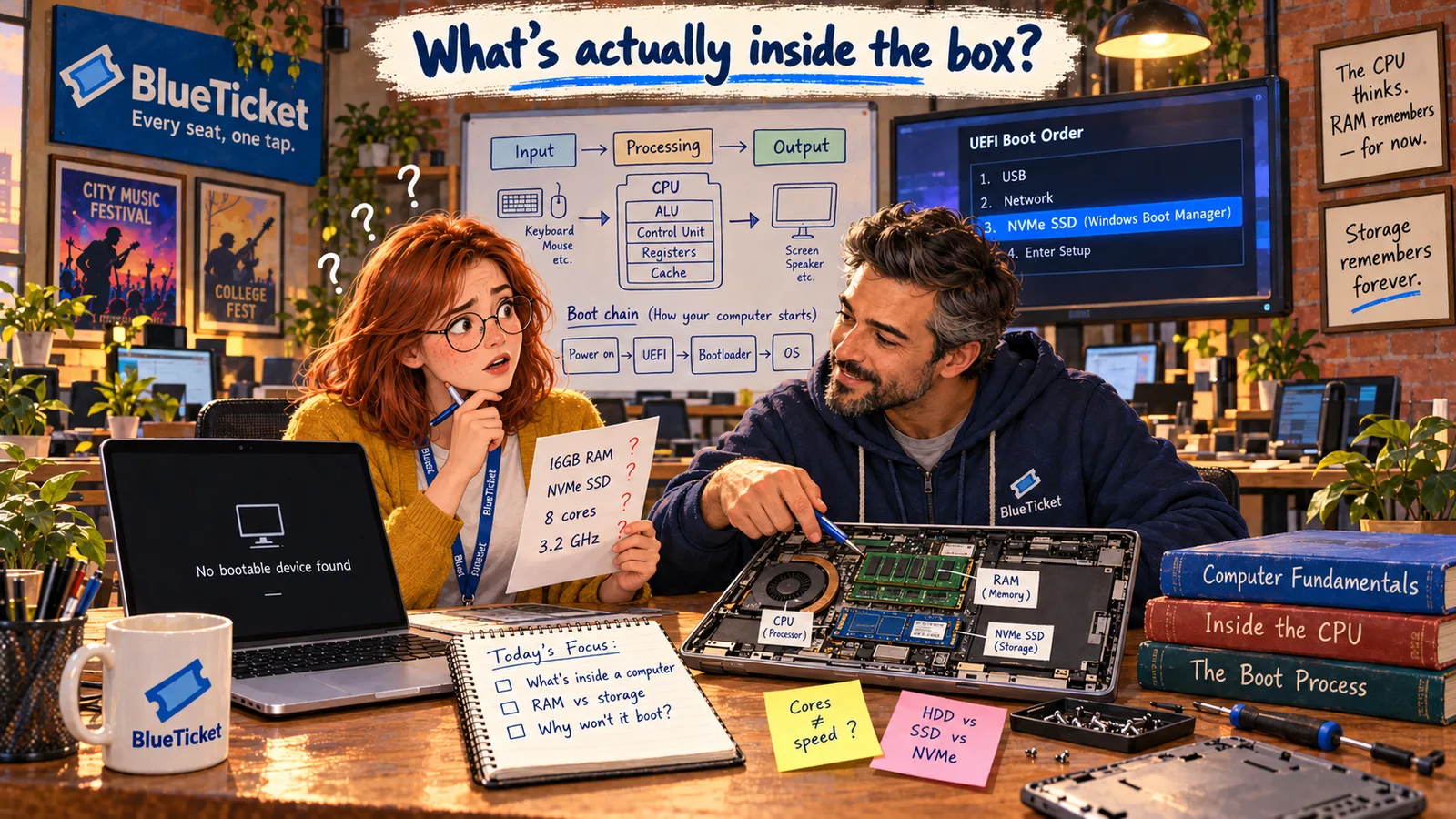
At the end of the day, Anna opens her old laptop again. Power button. Logo. Then the same black screen with white text: "No bootable device found. Press any key to reboot."
Yesterday it worked. Last night she plugged in a USB drive with old college files to copy them, and left it in. That's the only thing that changed.
| Fact | What it tells us |
|---|---|
| The logo appears | Power, CPU, RAM and screen all work |
| The message says "no bootable device" | It can't find something to start from |
| A USB drive was left plugged in | Something changed in what it looks at first |
The laptop turns on. The screen works. So what exactly can't it find?
Anna
"It's Broken" vs. Which Step of Starting Failed
Starting is a chain of steps
Booting isn't one event. It's a chain of small programs, each starting the next one.
The message says where it stopped
"No bootable device" points to one specific step: finding something to start the operating system from.
Hardware meets software
Booting is exactly where hardware hands control over to software.
What Happens When a Computer Starts
John pulls up a chair. "When you press the power button, the operating system isn't running yet. Someone has to start it. Booting is the chain of steps that gets from 'power on' to 'Windows is ready.'" (The word comes from "pulling yourself up by your bootstraps" — the computer has to start itself.)
- 1. Power on. The power supply sends power to the motherboard, and the CPU starts. But RAM is empty and the operating system is still sitting on the storage drive. The CPU needs some instructions to begin with.
- 2. Firmware runs. The CPU starts running firmware — a small program stored on a chip on the motherboard (the ROM/flash chip from earlier). Firmware is software that is closely tied to one piece of hardware. On PCs this firmware is called BIOS (on older machines) or UEFI (on modern ones).
- 3. Self-test (POST). The firmware runs a quick Power-On Self-Test: is there a CPU, is there working RAM, is there a keyboard and a screen? If something is badly wrong, the computer beeps or shows an error here.
- 4. Find a boot device. The firmware checks a list called the boot order — which drives to try first: USB, network, the internal SSD... It looks at each one for a bootloader. If it finds none, you get exactly Anna's message: No bootable device found.
- 5. The bootloader runs. A bootloader is a small program on the drive whose only job is to load the operating system. Windows uses Windows Boot Manager; Linux often uses GRUB; Macs have their own.
- 6. The operating system loads. The bootloader loads the kernel — the core of the operating system — into RAM. The kernel then starts drivers (small programs that know how to talk to each piece of hardware), background services, and finally the login screen.
| Feature | BIOS | UEFI |
|---|---|---|
| Age | 1980s design, now legacy | Modern standard |
| Settings screen | Text only, keyboard | Often graphical, mouse support |
| Large disks | Limited | Supports very large disks |
| Startup speed | Slower | Faster |
| Security | Basic | Secure Boot blocks untrusted bootloaders |
| What you see | Step that failed | Common cause |
|---|---|---|
| Nothing at all, no lights | Power | Dead battery, charger or PSU |
| Beeps, no picture | POST self-test | RAM or graphics problem |
| "No bootable device found" | Boot order / finding a bootloader | Wrong boot order, or a failed drive |
| Logo, then crash or endless restart | Operating system loading | Damaged system files or a bad driver |
From power button to login screen
Power on
PSU powers the motherboard, CPU starts
Firmware: UEFI / BIOS
stored on a chip on the motherboard
POST self-test
CPU, RAM, keyboard, screen OK?
Boot order
try USB, then SSD... find a bootloader
Bootloader
Windows Boot Manager, GRUB...
Operating system kernel
loaded into RAM, starts drivers and services
Login screen
ready to use
BIOS vs. UEFI. BIOS (Basic Input/Output System) is the original PC firmware from the 1980s. It is simple and limited: text-only menus and trouble with very large disks. UEFI (Unified Extensible Firmware Interface) replaced it on almost every computer sold in the last decade. It starts faster, supports huge drives, often has a graphical menu, and has Secure Boot, which only allows trusted bootloaders to run so harmful software can't sneak in before the operating system. Many people still say "BIOS" when they mean UEFI settings.
Now Anna can work out her problem step by step. The logo appeared, so steps 1–3 worked. The error is at step 4. When she plugged in the USB drive, it moved to the top of the boot order. The firmware tried the USB drive first, found no bootloader on it, and stopped instead of moving on to the internal SSD.
The fix: unplug the USB drive, restart, open the UEFI settings (usually by pressing a key like F2, F12 or Delete right after power on), and put the internal SSD back first in the boot order. Anna does it. The Windows logo appears, then her desktop. She actually cheers.
Hardware and software working together. Booting shows clearly how the two halves of a computer meet. Firmware is software built into hardware. Drivers are software that let the operating system control hardware. The operating system sits in the middle: apps ask it for things like "save this file" or "show this on screen," and it uses drivers to make the hardware do it. Apps never talk to the hardware directly.
Key Takeaway
Booting is a chain: firmware (BIOS/UEFI) tests the hardware, follows the boot order to find a bootloader, the bootloader loads the operating system's kernel, and the kernel starts drivers and services. An error message usually tells you which link in the chain broke.
Why This Matters
This is Anna's first real debugging win, and the method matters more than the fix: know the chain of steps, find the step where it stopped, then look only there. She'll use the same method all year — on servers that won't start, deployments that fail half-way, and on Sale Day itself.
In one week, Anna went from "I recognise nothing" to reading a spec sheet and fixing a boot problem. Before John trusts her with the new designer's laptop, there's one final check: can she choose the right computer for three very different people?