

In this chapter
We'll untangle the two numbers people mix up most — RAM and storage — and learn about ROM, hard drives, SSDs and NVMe, and the memory hierarchy that explains why computers need so many kinds of memory.
The Problem in Real Life
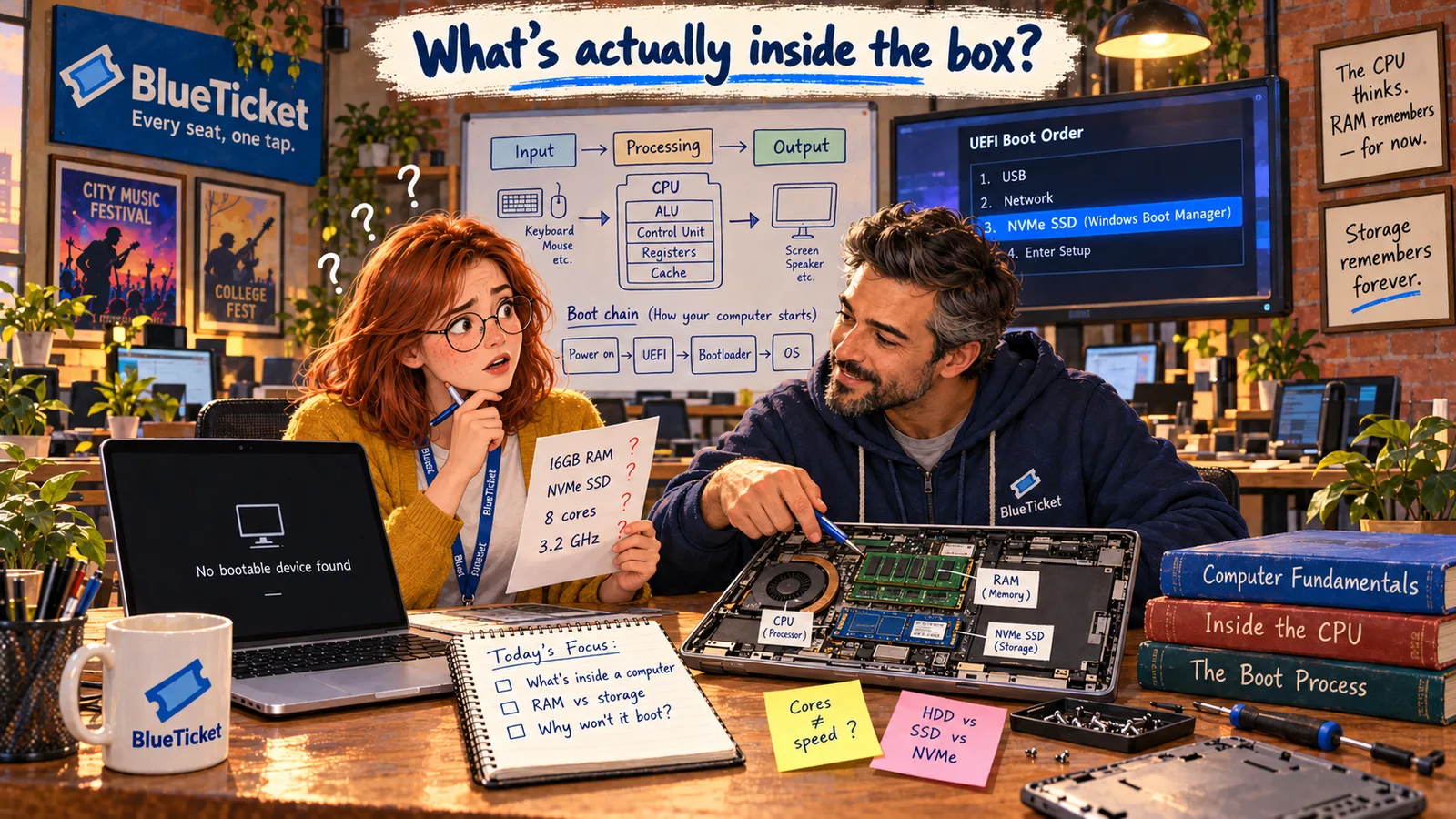
The next line on the spec sheet: 16 GB RAM · 512 GB NVMe SSD. Anna frowns. "So it has 16 GB of memory and 512 GB of... also memory? Why two numbers? And why is one so much smaller?"
She checks her own laptop's settings from college: 8 GB RAM, 1 TB hard drive. It always felt slow when she had many browser tabs open, even though the hard drive was almost empty.
My old laptop had loads of free space. So why was it so slow with twenty tabs open?
Anna
"Memory" and "Storage" — Two Different Things
Two words used as one
People say "memory" for both RAM and storage. They are different parts with different jobs.
Free space isn't speed
A nearly empty disk doesn't help when RAM is full — and RAM was Anna's real problem.
Fast vs. big
No single kind of memory is both very fast and very large, so computers use several kinds together.
Memory, Storage and the Memory Hierarchy
John uses an office to explain it. "Your desk is RAM. Your cupboard is storage. You can only work on what's on the desk. Everything else waits in the cupboard."
RAM (Random Access Memory) is the computer's working memory. When you open an app or a file, it is copied from storage into RAM, because the CPU can read RAM much faster. RAM is fast but it is volatile — that means it forgets everything when the power goes off. That's why unsaved work is lost in a power cut.
Storage is where things are kept long-term: the operating system, your apps, your photos, your documents. It is much bigger and cheaper than RAM, but slower. It is non-volatile — it keeps its data with the power off.
So Anna's old laptop wasn't slow because of the disk. With twenty tabs open, the 8 GB "desk" was full. When RAM fills up, the computer moves some things back into the cupboard (storage) and fetches them again when needed. This is called swapping (or paging), and because storage is much slower than RAM, everything starts to lag.
- ROM (Read-Only Memory) — a small chip on the main board that keeps its contents with the power off. It holds the firmware: the very first instructions a computer runs when you press the power button (more on this in the last chapter). Today it is usually flash memory that can be updated, but only on purpose — not during normal use.
- HDD (Hard Disk Drive) — the older kind of storage. It has spinning metal disks and a tiny arm that moves to read and write data, a bit like a record player. Moving parts make it slow and easy to damage if dropped, but it is cheap for large sizes.
- SSD (Solid State Drive) — storage made of flash memory chips, with no moving parts. It is many times faster than an HDD, quieter, and handles bumps better. This is why a computer with an SSD starts in seconds.
- NVMe — not a different kind of memory, but a faster way to connect an SSD. Older SSDs used a connection called SATA, which was designed for hard drives. NVMe SSDs plug into a faster connection (PCIe) and can be several times quicker than SATA SSDs.
| Feature | RAM (memory) | SSD / HDD (storage) |
|---|---|---|
| Office comparison | The desk | The cupboard |
| Typical size today | 8–32 GB | 256 GB – 2 TB |
| Speed | Very fast | Slower (SSD) to much slower (HDD) |
| When power goes off | Everything is lost | Everything is kept |
| What it decides | How much can be open at once | How much can be saved |
| Where the data is | Real time (approx.) | Scaled up |
|---|---|---|
| CPU cache (L1) | about 1 nanosecond | 1 second |
| RAM | about 100 nanoseconds | about 1.5 minutes |
| NVMe SSD | tens of microseconds | about a day |
| Hard disk (HDD) | several milliseconds | several months |
A nanosecond is one billionth of a second; a microsecond is one millionth; a millisecond is one thousandth. Real numbers vary by machine.
| Type | How it works | Speed | Good for |
|---|---|---|---|
| HDD | Spinning disks and a moving arm | Slowest | Cheap bulk storage, backups |
| SATA SSD | Flash chips, older connection | Fast | Upgrading older computers |
| NVMe SSD | Flash chips, fast PCIe connection | Fastest | Modern laptops and servers |
The memory hierarchy — faster and smaller at the top
Registers
inside the CPU · tiny · fastest
CPU cache (L1 · L2 · L3)
on the CPU · kilobytes to megabytes
RAM
working memory · gigabytes · lost at power-off
SSD / NVMe
storage · hundreds of gigabytes · kept at power-off
HDD
storage · terabytes · slowest
Why not just use RAM for everything, or one giant super-fast memory? Because fast memory is expensive and small, and big memory is cheaper but slower. So computers use a memory hierarchy: a few levels, from tiny and very fast near the CPU to huge and slow further away. The computer keeps the data it needs right now in the fast levels and everything else in the slow ones.
The difference in speed is huge. If you imagine that reading the CPU's fastest cache took one second, then reading RAM would take about a minute and a half, an NVMe SSD roughly a day, and an old hard drive several months. The exact numbers vary by machine, but the pattern doesn't: each step down is many times slower.
Back to the spec sheet. 16 GB RAM is how big the desk is — how many apps and files can be open at once and still feel fast. 512 GB NVMe SSD is how big the cupboard is — how much can be kept — and NVMe means the cupboard is very quick to open. For a designer working with large image files, both numbers matter.
Key Takeaway
RAM is the fast, temporary desk where work happens; storage is the big, permanent cupboard where things are kept. Computers use a hierarchy — registers, cache, RAM, SSD, HDD — trading speed for size at each step. When RAM runs out, the computer slows down, no matter how much free storage it has.
Why This Matters
This hierarchy is one of the most important ideas in all of computing, and it comes back again and again. In Act 09, Anna will make a slow page fast by keeping data closer to where it's needed. In Act 14, BlueTicket will add a cache in front of its database for Sale Day — the same "keep it on the desk" idea, at the scale of a whole system.
Two lines of the spec sheet are done. The rest — the GPU, and all the other parts in the box — are still a mystery. John has an idea: open an old laptop and look.